Did you know about the “Shake to Minimize” feature? It lets you close all windows but the one you’re using. This makes your workspace more organized. With over 50 million lines of code, Windows has many hidden gems.
These tips can change how you use your PC. They make your work more efficient and fun. Whether you’re on Windows 10 or 11, these hacks are useful.
Features like Clipboard History and “God Mode” can boost your workflow. They help you work better and faster. Let’s explore these hidden features together.
Key Takeaways
- Explore lesser-known features that enhance productivity and organization.
- Utilize innovative tools like Clipboard History and Virtual Desktops.
- Discover shortcuts that minimize distractions and streamline tasks.
- Enhance Windows functionality with utilities such as PowerToys.
- Learn how to access a treasure trove of settings with the “God Mode.”
Uncovering Hidden Windows Features
Windows is known for its flexibility and powerful features. It has many hidden tools that make life easier. For example, Task View helps you manage multiple desktops, keeping your work organized.
What Makes Windows So Powerful?
Windows is adaptable and easy to use. You can change your screen’s look by going to Settings > Personalization > Colors. This makes your work area more comfortable.
Windows Sandbox lets you try new apps safely. It’s great for testing software without harming your computer. The Xbox Game Bar also adds value, allowing you to stream games and monitor resources.
Exploring Lesser-Known Tools and Utilities
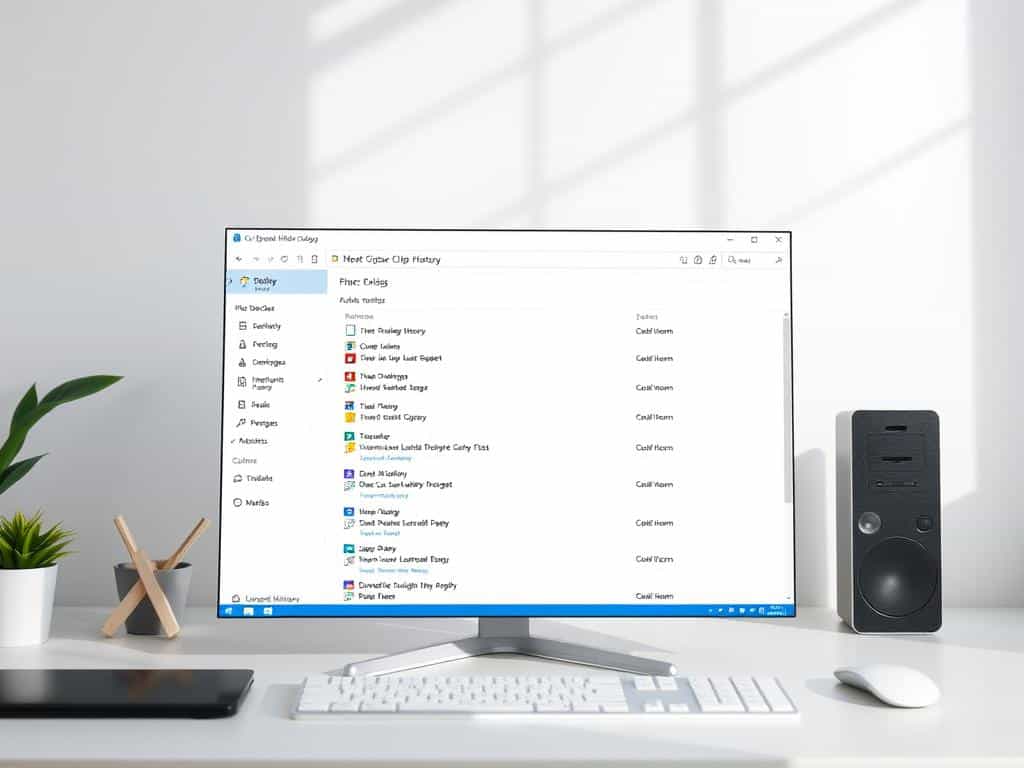
There are many hidden tools in Windows that boost productivity. Clipboard History, accessed by Windows Key + V, saves your copied items. This is super helpful for working across different devices.
The Snipping Tool makes taking screenshots easy. Winget, a command-line tool, makes installing apps and updates simple. Using these tools daily can make your computer work better and faster.
Top Windows Tips for Productivity Boost
Boosting productivity on Windows means using powerful features. These features help streamline your workflow and keep things organized. I’ve found tools that make managing tasks easier. Features like virtual desktops and Clipboard History have greatly improved my daily tasks.
Utilizing Virtual Desktops for Organization
The virtual desktop feature has changed how I work. I can create multiple desktops quickly, separating different projects. This reduces clutter and helps me stay focused by avoiding distractions.
Switching between desktops is easy with Task View (Win + Tab). This makes navigating my projects more efficient. If you have a cluttered desktop, this feature could greatly improve your productivity.
Revolutionizing Copy-Paste with Clipboard History
Clipboard History is another great feature, activated by Win + V. It lets you paste multiple copied items at once. This is a big improvement over the usual single paste function.
It makes complex tasks much faster, as I don’t have to copy and paste as much. With a list of copied items, I can work more efficiently. This saves me a lot of time and reduces repetitive tasks.
Enhancing Your Experience with PowerToys
Microsoft PowerToys is a treasure trove for anyone wanting to improve their Windows experience. It’s packed with utilities for customization. These tools help make everyday tasks easier and more efficient.
What is PowerToys and How to Use It?
Microsoft PowerToys was first launched for Windows 95. It’s now back for Windows 10 and Windows 11 users. It supports x64 and ARM64 processors, helping a wide range of users.
Installing and activating PowerToys is easy. It brings immediate improvements to your workflow.
Key Features that Transform Your Windows Usage
PowerToys has at least 20 tools, each designed to improve Windows usage. FancyZones lets you create custom desktop layouts for better multitasking. This tool makes window management easier.
PowerRename makes renaming multiple files at once simple. It uses regular expressions to save time. The Color Picker, accessed with ⊞ Win+Shift+C, captures on-screen colors in various formats.
PowerToys Run offers a universal search for quick app or file access. It starts with Alt+Space. Image Resizer and File Explorer add-ons are also useful for file management.
Tools like Mouse Without Borders let you control multiple machines with one keyboard and mouse. This has greatly improved my productivity setup.
Conclusion
In this article, I’ve shared many Windows secrets that can boost your experience. You can use the Clipboard History feature and PowerToys for more customization. These tips can really change how you work.
Many people don’t know about the benefits of simple changes. Managing notifications and using virtual desktops can help you focus better. Studies show organizing files can make you up to 30% more productive.
I suggest you explore these features more. By using Windows’ hidden abilities, you can work more efficiently. Stay tuned for more articles on these topics to learn even more.