Did you know nearly 70% of remote workers struggle to access their work computers from different places? This shows how important it is to know how to control your PC remotely. With more people working from home, it’s key to manage your desktop from anywhere. Remote access lets me easily get to my files and apps, no matter where I am.
In this guide, I’ll show you how to control your PC from anywhere. This way, you can stay productive without being stuck at your desk.
Key Takeaways
- Remote access technology is essential for remote workers.
- Multiple platforms support remote desktop connections.
- Security measures, like strong passwords, are key for safe remote sessions.
- There are many apps for controlling your computer remotely.
- Flexible solutions meet different needs and budgets.
Understanding Remote Access Technologies
Remote work has become more common, making it key to know about remote access technologies. These tools let users connect to other computers or networks from anywhere. This boosts flexibility and productivity. Many remote desktop apps make it simple to work from any location.
What is Remote Access?
Remote access lets users control or access a computer from another place over the internet or a private network. It’s vital for IT support, allowing techs to help without being there. It helps manage personal computers and servers remotely, helping small and mid-sized businesses work better.
Common Remote Access Applications
Popular apps like Chrome Remote Desktop and Microsoft Remote Desktop make connecting easy. Tools like TeamViewer and LogMeIn Pro offer strong IT support and extra features for managing devices from different places. Using these technologies is now a must, as more companies move to a hybrid work model.
Setting Up Remote Access to Control Your PC Remotely
Setting up remote access lets me control my computer from anywhere. This boosts my productivity and makes things more convenient. I’ll show you how to set it up for Chrome Remote Desktop and Microsoft Remote Desktop. This will help anyone connect to their PC remotely easily.
Configuring Your Computer for Remote Access
To start, I enable the Remote Desktop feature on my Windows computer. This is available in Windows 10 and 11 Pro and Enterprise editions. On a Mac, I find similar settings in System Preferences. I need admin rights to set up remote access correctly.
After enabling it, I make sure Network Level Authentication is on. This adds an extra security step by requiring user verification before connecting remotely.
Using Chrome Remote Desktop
Then, I use Chrome Remote Desktop for an easy setup. I just need to install Google Chrome on my computer. Next, I visit the Chrome Remote Desktop website and download the app.
After installing, I create a unique access code. This code lets me connect to my PC from any Chrome-enabled device. It’s easy to use and works well across different operating systems.
Using Microsoft Remote Desktop
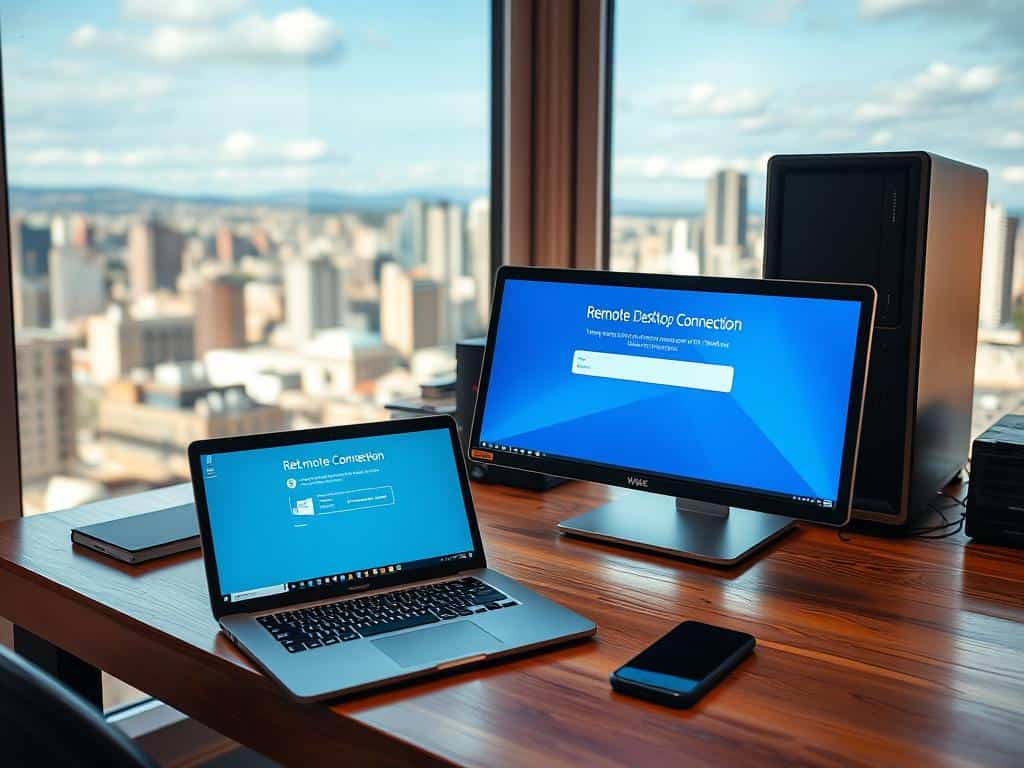
Microsoft Remote Desktop is another great option. I download the app for my device, whether it’s Windows, Mac, iOS, or Android. Once installed, I save my login details for easy access later.
To connect to my PC, I open the app and enter my machine’s IP address or friendly name. The app lets me zoom in and use the keyboard remotely. It’s perfect for both personal and professional use.
How to Control Your PC Remotely with Mobile Devices
In today’s fast world, controlling my PC from mobile devices is key. With more people working remotely, tools like Chrome Remote Desktop and TeamViewer make it easy and safe. I can manage tasks from anywhere, boosting my productivity and flexibility.
Using the Chrome Remote Desktop Mobile App
The Chrome Remote Desktop app is easy to use for remote access. First, I download it from the App Store or Google Play. Then, setting it up is simple. I log in with my Google account to access my devices.
The app connects securely, using encryption to protect my data. I can add a PIN for extra security, so only I can access my computer. Whether I’m working or fixing a problem, the app keeps me connected.
Utilizing TeamViewer for Mobile Control
TeamViewer is another great choice for mobile control, known for its strong security and features. It’s easy to install and register, then I can connect to my devices quickly.
TeamViewer uses top-notch security like 256-bit AES and 2048-bit RSA to keep my sessions safe. It also lets me share files, print remotely, and navigate my desktop. Its design ensures I can work without any hitches.
In short, Chrome Remote Desktop and TeamViewer offer great ways to control my PC from anywhere. They meet different needs, helping me work efficiently from anywhere.
Conclusion
Remote PC control brings big benefits, making work more productive and efficient. It lets users access their systems from anywhere, making work easy no matter where they are. This flexibility helps employees stay productive outside work hours and keeps business running smoothly.
Secure remote access tools are key for good IT management. They let IT teams fix problems fast, support important tasks, and manage systems from one place. This ensures data stays safe and meets all rules, creating a reliable space for everyone.
I suggest looking into different remote access options. They offer flexible and affordable solutions for both personal and work needs. Using the right remote access tech can make managing systems easy and keep connections secure, improving your work life.